






 Web Based Solutions


 Mobile App Development









 UI/UX Design
 Digital Marketing


 Quality Assurance



 Managed IT Services
 Web Developers












 Mobile App Developers




 Frontend Developers




 Open Source Developers








 Microsoft Certified Developers




 Cross Platform Developers


 Quality Assurance


 Microsoft
 Open Source
 JS Frameworks

 Business Models
 Intellectual Property Protection
 IT Consulting Services
 IT Outsourcing Services
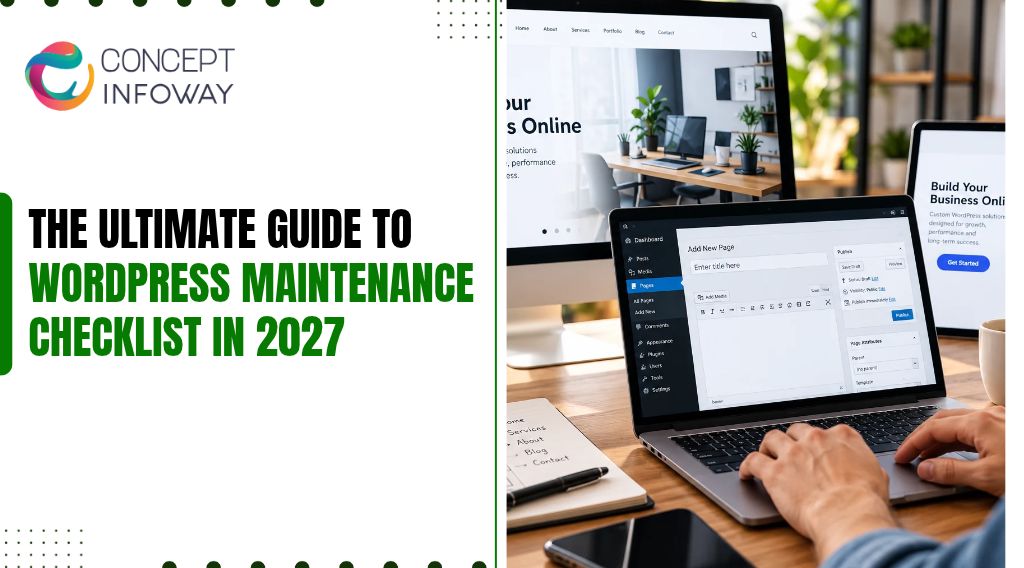
The Ultimate Guide to WordPress Maintenance Checklist in 2027
WordPress maintenance checklist planning helps you prevent avoidable downtime, security issues, broken features, and gradual performance problems before they affect customers or revenue. A website that looks fine on the surface can still have outdated plugins, failed backups, expired integrations, or database clutter working against it.
This guide explains what to check weekly, monthly, quarterly, and after major changes. You will learn how to organize WordPress updates, verify backups, improve security, monitor performance, and decide when WordPress maintenance services or a WordPress development company in USA may be the more practical option.
What a WordPress Maintenance Checklist Should Protect
A useful WordPress maintenance checklist is more than a list of buttons to click in the WordPress dashboard. It is a repeatable process for protecting the website’s availability, security, speed, content quality, and ability to support business goals.
The right tasks depend on whether the site is a brochure website, lead-generation platform, membership system, publication, or ecommerce store.
Maintenance Is Risk Management, Not Busywork
WordPress maintenance reduces the chance that a small technical issue becomes a customer-facing problem. An abandoned plugin may introduce a security weakness. A theme update may affect a custom template. A backup may exist but fail during restoration.
A contact form may continue displaying normally while submissions stop reaching the business. A WordPress maintenance checklist should include sending a test form, not just viewing it.
Each task should answer one practical question: what could fail, how would you know, and how quickly could you recover? This approach makes maintenance more useful than simply updating everything whenever a dashboard notification appears.
For example, a service business should pay close attention to contact forms, phone links, appointment requests, local landing pages, and conversion tracking. An online store needs additional checks for checkout, payment integrations, shipping rules, transactional emails, inventory behavior, and order notifications.
A content-heavy site may need stronger controls around editorial access, media storage, search visibility, and publishing workflows. Adapt the WordPress maintenance checklist to publishing patterns, user permissions, and integrations.
Separate Routine Checks From Change Management
Routine maintenance includes recurring inspections such as reviewing updates, checking backups, testing forms, scanning for suspicious activity, and monitoring uptime. Change management applies when you introduce a major WordPress version, plugin, theme, hosting configuration, design change, or third-party integration.
The process should distinguish routine checks from changes needing approval.
The distinction matters because a routine update can often be handled with a defined test procedure, while a major change may require staging, a database backup, compatibility review, and a rollback plan. Treating both situations the same way is a common cause of preventable outages.
A practical maintenance record should capture the date, task completed, person responsible, result, and follow-up action. Keep notes about changes that may affect future troubleshooting, such as custom code, unusual plugin settings, API credentials, redirects, or special checkout rules.
Clear records reduce dependency on one person’s memory and make it easier for a development partner to understand the site. Keep WordPress maintenance checklist records so maintainers can trace updates and recovery tests.
Keep Your WordPress Website Secure and Updated
Get A Free QuoteBuild a Weekly and Monthly WordPress Maintenance Routine
A WordPress maintenance checklist helps teams find problems while they are still manageable. Not every website needs a daily manual review, but every business website should have defined checks, assigned responsibility, and a clear escalation path when something fails.
Weekly Checks That Catch Visible Problems
Weekly reviews should focus on the parts of the website that customers and administrators use most often. Start with a quick front-end inspection on a desktop browser and a mobile device. Check the homepage, primary navigation, important service or product pages, contact paths, forms, and any recently published content.
Weekly WordPress maintenance checklist tasks should confirm availability and important user flows.
Submit a test form when the website depends on inquiries or registrations. Confirm that the submission arrives at the intended inbox or system, the confirmation message works, and spam controls are not blocking legitimate requests.
Use the WordPress maintenance checklist to test integrations such as customer relationship management platforms. Verify that each record is created correctly rather than assuming an on-screen success message proves delivery.
Review the WordPress dashboard for failed updates, unusual administrator accounts, error notices, pending comments, and unexpected content changes. Confirm that automated backups completed and that the latest backup is stored separately from the production website. A backup that remains on the same compromised server may not provide meaningful recovery protection.
A WordPress maintenance checklist should capture repeated errors instead of treating failures as isolated.
Monthly Checks for Technical Health
Monthly WordPress website maintenance should go deeper than a visual inspection. Review plugin and theme usage, remove inactive components that are no longer required, and confirm that license-dependent tools remain valid when applicable.
Before removing an inactive component, the WordPress maintenance checklist should confirm whether it supports rollback or compatibility; record the reason before making changes.
Check the media library and hosting storage for large unused files, duplicate uploads, oversized images, and logs that are growing without control. Storage cleanup should be careful and reversible. Removing a file that appears unused can break an older page, CSS rule, downloadable resource, or email template.
Monthly WordPress maintenance checklist reviews should include plugin support and restore readiness.
Review analytics and search data for unusual changes in traffic, indexing, conversions, or referral patterns. Analytics alone does not explain every issue, so compare the data with recent releases, campaigns, seasonal behavior, and known tracking changes.
If traffic drops after a site change, inspect technical signals before assuming the cause is a search algorithm update.
A concise monthly review can include:
- Test key forms, calls to action, navigation paths, and transactional messages.
- Verify backup completion, storage location, retention settings, and restoration readiness.
- Review updates, user access, security alerts, performance trends, and broken links.
Quarterly Reviews for Structural Problems
Every quarter, assess whether the website still supports the business. Review outdated pages, duplicate content, old promotions, broken internal links, unused integrations, and features that generate maintenance effort without delivering value. Quarterly WordPress maintenance checklist reviews can expose obsolete features and ownership gaps.
A WordPress maintenance checklist should also set time aside to review user permissions. Editors generally do not need administrator access, and former employees or vendors should not retain accounts. Use individual accounts instead of shared credentials so activity can be traced and access can be removed cleanly.
Quarterly reviews should also examine whether the current hosting, theme, plugins, and custom code remain suitable for the website’s traffic, content volume, integrations, and growth plans. A site can remain operational while becoming increasingly difficult to update safely.
That is often a sign that technical debt needs attention before the next redesign or marketing campaign. A WordPress maintenance checklist should track structural issues requiring development rather than routine upkeep.
Handle WordPress Updates Without Creating New Problems
WordPress updates are important for security, compatibility, and access to improvements, but updating without preparation can create a different type of risk. A plugin may conflict with another plugin, a theme may override core behavior, or custom code may rely on an older function.
The WordPress maintenance checklist should not discourage updates; it should support applying them in a controlled way.
Classify the Update Before Applying It
Review what is changing and whether the component is business-critical. Core updates, security releases, payment tools, form plugins, page builders, ecommerce extensions, and custom integrations deserve more attention than a minor tool that is not active on the front end.
Rank updates in a WordPress maintenance checklist by exposure, compatibility, and business criticality.
Before applying a significant update, confirm that you have a recent backup and know how to restore it. Check the plugin or theme’s compatibility information where available, but do not treat a compatibility label as a substitute for testing.
Your specific combination of WordPress version, PHP environment, theme, plugins, custom code, and hosting configuration may behave differently.
If a plugin is no longer maintained, repeatedly causes errors, duplicates another function, or is unnecessary, replacing it may be safer than continuing to update it. Plugin quantity is not the only performance or security factor, but every active component adds another dependency that needs to be evaluated.
A WordPress maintenance checklist should record update results and follow-up checks.
Use Staging for Higher-Risk Changes
A staging environment provides a place to test changes before they reach visitors. It should resemble production closely enough to reveal real compatibility problems, including the relevant PHP version, database behavior, theme settings, and integrations.
Staging is not useful if it is too old or configured differently from the live site.
Test more than whether the homepage loads. Check login, search, forms, account areas, menus, mobile layouts, product filters, checkout, confirmation emails, and any custom workflow. Clear or protect test data so real customer records, orders, and messages are not accidentally affected.
Include staging validation in the WordPress maintenance checklist before changing important integrations.
After testing, schedule the production change during a period when someone can monitor the website. Record the previous versions and changes made. If an issue appears, avoid making several unrelated changes at once. Isolating the change makes diagnosis and rollback more reliable.
Update the WordPress maintenance checklist when staging reveals new dependencies or conflicts.
Know When an Update Should Become a Development Task
Some update problems cannot be solved by clicking update again. If a theme contains extensive customizations, a plugin has been abandoned, a payment or CRM integration is failing, or a core update exposes old custom code, the website may need development work.
Concept Infoway can be relevant when a WordPress maintenance checklist points to development needs beyond routine site care. The practical objective is to preserve the website’s business function while improving the code, integration, or architecture that makes routine updates difficult.
That may involve reviewing the implementation, testing a replacement, correcting a compatibility issue, or planning a controlled modernization rather than applying a quick patch to the live site. A WordPress maintenance checklist cannot replace code review when custom functionality needs repair.
Prevent Website Issues with Expert WordPress Maintenance Services
Get A Free QuoteInclude Security, Backup, Performance, and SEO Checks
WordPress security maintenance and performance work overlap, but they should not be treated as identical. A secure site can still be slow, and a fast site can still have weak access controls. A complete checklist covers both technical protection and the customer experience.
Verify Security Controls and Access
Use unique credentials, strong authentication, limited user permissions, and timely removal of unused accounts. Review administrator activity and investigate changes that no one on the team recognizes. Keep WordPress, themes, plugins, the server environment, and related libraries supported where possible, while testing updates before applying higher-risk changes.
Review privileged account permissions as part of the WordPress maintenance checklist.
Security scans can identify suspicious files or known patterns, but a clean scan does not prove that the website is fully secure. It may not detect compromised credentials, unsafe server settings, or a vulnerable custom integration. Monitoring, patching, access control, and incident response all matter.
WordPress maintenance checklist reviews must extend beyond security plugins. Confirm that hosting access, domain access, DNS, email accounts, analytics, and third-party services are also protected. Document who can access each system and where recovery information is stored. Never place passwords or secret keys in a public maintenance document.
Test Backups Instead of Assuming They Work
A backup strategy should define what is backed up, how often, where copies are stored, how long they are retained, and who can restore the site. Database backups protect content and settings, while complete backups may also include media, themes, plugins, and configuration files.
The appropriate approach depends on the website and hosting environment. A WordPress maintenance checklist should include test restores and backup-storage responsibilities.
Restoration testing is the important step many teams skip. A successful backup job only confirms that a process ran; it does not guarantee that the files are complete or that the site can be restored within an acceptable business window.
Periodically restore a copy in a controlled environment and verify pages, media, forms, user access, and important data.
For an ecommerce or membership website, restoration procedures require extra care because a rollback can affect orders, subscriptions, accounts, or other records created after the backup. Define how those records would be handled before an emergency occurs. Document restoration limitations in the WordPress maintenance checklist for payments and membership data.
Monitor Performance and Search Visibility
Review loading behavior on representative pages and devices, not just the homepage. Look for oversized images, render-blocking assets, excessive scripts, database growth, slow queries, inefficient plugins, and third-party tools that delay interaction. Performance improvements should be measured before and after a change so the team knows whether the work helped.
Do not remove functionality solely to improve a score. A performance tool may identify a technical opportunity, but the business impact depends on the page, audience, device, and conversion path.
A slightly lower lab score may be acceptable if a feature is important and the real-user experience remains strong; a high score does not help if a critical form is broken. A WordPress maintenance checklist should monitor key templates and performance over time.
Search maintenance includes checking indexability, redirects, canonical behavior, metadata, structured content where appropriate, broken links, and important landing pages. Review unexpected noindex settings after redesigns or staging migrations. Compare rankings and traffic with technical releases, content changes, and campaign activity rather than interpreting one metric in isolation.
Check Compliance-Sensitive Features Carefully
Privacy notices, consent tools, accessibility behavior, cookie handling, payment flows, and data retention may involve legal, regulatory, or platform-specific requirements that vary by business and location. WordPress maintenance can support implementation and testing, but it does not replace advice from qualified legal or compliance professionals.
For sensitive features, the WordPress maintenance checklist should prompt access and data-handling checks.
Test the user experience as well as the configuration. A consent banner that technically appears may still obscure content on mobile, block necessary functionality, or fail to communicate clearly. Treat these features as part of the website experience, not as isolated plugins.
The global web development market was valued at USD 80.60 billion in 2025 and is projected to grow from USD 87.75 billion in 2026 to USD 134.17 billion by 2031, registering a compound annual growth rate (CAGR) of 8.87% during the forecast period (2026–2031).
Decide Whether to Manage Maintenance In-House or Use a Service
Many businesses can handle basic content reviews and simple checks internally. The decision becomes more complex when the website generates leads, processes transactions, stores customer information, supports multiple integrations, or has custom development.
In those cases, the cost of an unplanned failure may be greater than the effort required for a structured maintenance program. A WordPress maintenance checklist helps define which failures require urgent technical assistance.
When Internal Maintenance May Be Practical
An internal process can work when the website is relatively simple, changes are infrequent, someone has technical ownership, and the team can test and restore the site. The person responsible should have enough time to investigate failures rather than treating maintenance as an occasional administrative task.
In-house WordPress maintenance checklist owners need access, scheduled time, and an escalation process.
Document the boundaries of that responsibility. For example, an employee may manage content updates and form tests but escalate plugin conflicts, security alerts, database errors, or integration failures. Clear boundaries prevent a nontechnical team member from making risky production changes under pressure.
When Professional WordPress Maintenance Services Make Sense
Professional support is often useful when the website is business-critical, the team lacks recovery experience, updates frequently cause conflicts, or there is no reliable record of the current configuration. It can also help when marketing, design, development, hosting, and security responsibilities are divided across several vendors.
A professional WordPress maintenance checklist process should specify response and reporting expectations.
When evaluating WordPress maintenance services, ask how the provider handles backups, staging, update testing, monitoring, emergency changes, access control, reporting, and escalation. Clarify what is included and what becomes a separate development project. A maintenance agreement should not create the false impression that every issue is covered automatically.
Ask whether the provider will explain findings in business terms. You should understand which risks affect leads, sales, customer data, search visibility, or internal operations, and which items can wait. The right partner helps prioritize work instead of generating a long list of technical warnings with no decision framework.
The WordPress maintenance checklist should remain usable if maintenance ownership changes.
What a Practical Maintenance Plan Should Document
A useful plan identifies the website’s critical functions, update schedule, backup procedure, testing environment, access owners, monitoring sources, and recovery steps. It should also record the active theme, important plugins, custom integrations, hosting details, domain and DNS responsibilities, and any known limitations.
Before engaging a WordPress development company in the USA or another technology partner, prepare access through secure, controlled methods and describe the website’s business priorities. Share which pages generate leads, which systems receive data, what changes are planned, and what must not be interrupted.
Better context leads to safer recommendations. A WordPress maintenance checklist should preserve context to prevent repeat failures.
At Concept Infoway, WordPress maintenance is most useful when it is connected to the broader condition of the website. If the site needs a code correction, integration improvement, speed investigation, redesign support, or ongoing development, separating those needs from routine maintenance helps create a more realistic technical plan.
A WordPress maintenance checklist should support a website that is easier to manage and better aligned with how the business operates.
Use a Simple Priority System
Not every issue deserves the same response time. A broken checkout, inaccessible website, compromised administrator account, or failed lead form is usually more urgent than an outdated image or minor visual inconsistency. Classify findings by customer impact, security exposure, revenue risk, search impact, and ease of recovery.
Use the WordPress maintenance checklist to classify work by urgency and business impact.
A practical priority model has three levels:
- Critical: The website is unavailable, compromised, losing transactions, or blocking an essential business process.
- High: A major feature is unreliable, a significant security or compatibility risk exists, or important pages are materially affected.
- Planned: The issue is useful to address but does not currently prevent normal operations.
This structure helps decision-makers approve work based on risk rather than reacting to whichever dashboard notice appears first.
Wrapping Up
A WordPress maintenance checklist should help you prevent problems, detect issues quickly, and recover with less disruption. The strongest process combines scheduled reviews, controlled WordPress updates, tested backups, access management, security maintenance, performance checks, search monitoring, and documentation that reflects how the website actually supports the business.
Start by listing your critical customer journeys and checking them on a defined schedule. Then confirm that backups can be restored, updates are tested appropriately, administrator access is controlled, and someone owns the response when a check fails.
When a WordPress maintenance checklist identifies custom-code risks, ecommerce dependencies, or recurring update conflicts, professional maintenance may reduce operational disruption.
Concept Infoway can support businesses that need WordPress development and maintenance to work together, particularly when recurring technical issues point to a deeper code, integration, performance, or usability problem.
The next step is not to apply every available update at once; it is to assess your website’s current condition, prioritize the risks, and build a maintenance routine that your team can consistently follow. A WordPress maintenance checklist becomes more useful when owners review outcomes, not just tasks.
FAQs - WordPress Maintenance Checklist
What should be included in a WordPress Maintenance Checklist?
A complete checklist should cover backups, updates, security, user access, forms, links, performance, analytics, search visibility, media storage, and restoration testing. Add ecommerce or integration checks when those functions are business-critical. A WordPress maintenance checklist should record not only what to inspect but also how success will be verified and who is responsible. Include restoration testing, access permissions, plugin and theme compatibility, transaction or form checks, and uptime monitoring where relevant. Prioritize tasks according to the risks of the site’s features. Keep a change log so recurring problems can be traced and the recovery process is understandable to the next person maintaining it.
How often should WordPress website maintenance be performed?
Review critical functions and backup status weekly, perform deeper technical checks monthly, and complete structural or access reviews quarterly. Higher-risk websites may need more frequent monitoring and controlled update testing. Frequency is driven by the importance of the website, the rate of content and plugin changes, and the damage a failure could cause. A WordPress maintenance checklist can organize weekly functional checks, monthly technical reviews, and deeper quarterly audits, while security alerts may require faster action. Define who receives warnings and who authorizes updates. Maintenance plans should be adjusted as the site gains integrations, traffic, or business-critical functions.
Should WordPress updates be installed immediately?
Security-related updates should be assessed promptly, but important changes should still follow a backup and testing process. Staging, compatibility checks, and a rollback plan help reduce the risk of disrupting custom features or integrations. The response should reflect the severity of the issue and whether the change affects a critical component. A WordPress maintenance checklist helps teams confirm a recent recoverable backup, check compatibility, test in staging when practical, and prepare rollback steps. Security fixes deserve urgency, but rushing untested changes into a complex site can create avoidable outages. Verify forms, checkout, and other important journeys after updates are released.
Are WordPress maintenance services necessary for a small business website?
Not always. An internal team may manage a simple site if it has time, technical knowledge, reliable backups, and a recovery plan. Professional support becomes more valuable when the website generates leads, processes transactions, or has custom functionality. Whether to outsource depends on the team’s capacity to handle updates, monitor failures, and recover the site when something goes wrong. A WordPress maintenance checklist can make routine internal work manageable, provided ownership and escalation are clear. Professional help becomes more useful with custom themes, commerce functions, integrations, or stricter uptime needs. Compare the cost of ongoing support with the operational risks of delayed repairs.
What is included in WordPress security maintenance?
It typically includes updates, access reviews, security monitoring, backup verification, vulnerability response, and investigation of suspicious activity. Exact coverage varies, so confirm whether hosting, custom code, and incident response are included. Security involves more than installing updates. A WordPress maintenance checklist should cover administrator permissions, multifactor authentication where available, monitoring of suspicious access, vulnerability review, and tested recovery copies. Remove unneeded extensions and accounts to reduce exposure. Document who investigates warnings, what hosting protections are in place, and how changes will be validated so security actions do not silently break important features.
How can I tell whether my WordPress backups actually work?
A completed backup notification is not enough. Periodically restore a copy in a controlled environment and verify the database, media, settings, forms, logins, and critical workflows. Document the restoration steps and any limitations. A test restore should confirm that the database and files can be recovered together, that users can sign in, and that essential forms or purchase workflows operate as expected. The WordPress maintenance checklist should record backup frequency, off-site storage, retention rules, access rights, and the last successful recovery test. A backup that exists but cannot be restored is not a dependable safeguard. Document the time and dependencies needed to recover services.
Can WordPress maintenance improve website speed and SEO?
It can support both by addressing outdated components, database growth, broken links, indexability problems, oversized media, and inefficient scripts. Results depend on the site, hosting, content, and changes made. Updates and cleanup can remove some technical friction, but speed also depends on hosting, theme architecture, scripts, content, and image delivery. A WordPress maintenance checklist should include checks for broken links, crawlability, performance regressions, and new plugin conflicts. Monitor important templates before and after changes rather than assuming a plugin update improved results. SEO improvements require separate attention to useful content and search intent.
When should I hire a WordPress development company in the USA?
A WordPress maintenance checklist can indicate when professional development support is needed, especially when updates create conflicts, custom code needs repair, integrations fail, or the site requires new functionality. A qualified partner can separate routine maintenance from larger development work. A developer is appropriate when a problem goes beyond safe routine upkeep, especially with custom plugins, theme code, third-party integrations, or recurring errors after updates. A clear maintenance record helps document the symptoms, affected features, recent changes, and rollback status before outside work begins. Evaluate providers on diagnostic process, ownership, testing, and support responsibilities. Concept Infoway can be considered for development needs alongside ongoing site maintenance.


Content Gap Analysis: How to Find and Prioritize Missed Opportunities